
MYCARDFLOW HELP
From your first scan to your next sale.
Step-by-step guides for singles, bulk lots, You-Picks, and the settings that make listing easier.
Need a hand? admin@mycardflow.com
Getting started
Turn scans or phone photos into eBay listing drafts. Review the card details and set your prices before you publish.
- Open New Listing and choose Singles, Bulk Lot, or You-Pick.
- Choose Fronts only or Fronts and backs before adding photos. For paired photos, keep each card’s front immediately followed by its back.
- Choose the card type, add your photos, and identify the cards. Add set details when the batch is from one product.
- Review the identification, condition, photos, titles, prices, and shipping. Publish when you’re ready; uploading and identifying do not publish a listing.
Which listing type should I choose?
Singles creates a separate listing for each card. Bulk Lot sells the included cards together for one total price. You-Pick creates one listing with a dropdown so buyers can choose individual cards.
Do I need an eBay account?
You can identify and review cards before connecting. To publish, connect your seller account in Settings → eBay and check your ship-from address and business policies.
How should I photograph my cards?
Use clear scans or evenly lit photos against a plain background. Keep the whole card visible and avoid glare. Backs can help identify card numbers and set details; fronts-only capture is useful when the identifying details are on the front. Check the selected photo mode before uploading.
Singles
Use Singles when each card should have its own eBay listing. A batch can contain one card or a stack.
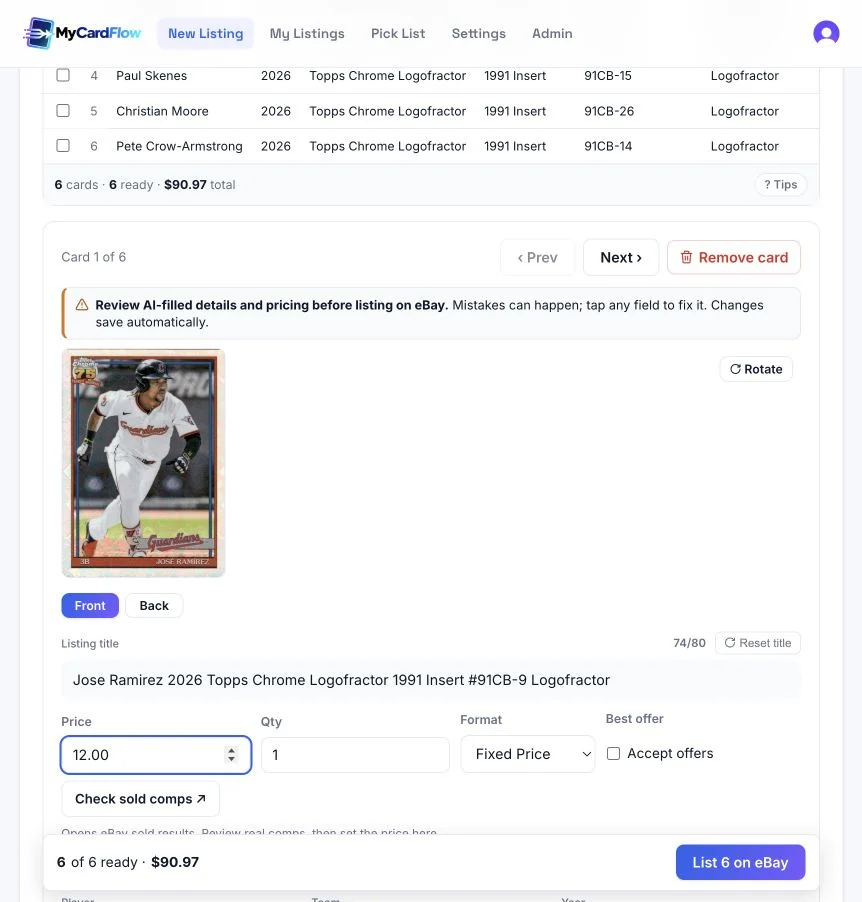
- Add and identify your cards, then select a card to review its photo and details.
- Check the player or card name, set, number, parallel, condition, and title. Correct any mistakes before listing.
- Set the price and quantity, choose Fixed Price or Auction, and check shipping and the card’s storage location.
- Review the ready cards and use the listing button to publish them to eBay.
Can I edit several cards at once?
Yes. Use Batch defaults for starting values, or select rows for bulk edits. Batch store category stays linked to cards that use the batch category, including cards added later; individual category overrides are preserved. Apply to all can overwrite existing edits, so review its effect carefully. All prices lets you adjust current prices by a percentage.
How do I choose a price?
Use Check sold comps to open eBay sold results, compare relevant cards, then enter your price in MyCardFlow. Check the exact parallel, condition, and other distinguishing details. The price remains editable before publishing.
Can buyers make offers?
For fixed-price singles, enable Accept offers. You can also enable it by default in Settings → Listings → Offers. Auctions do not use this setting.
Bulk lots
Sell a group of cards together in one listing, with one price for the entire lot.
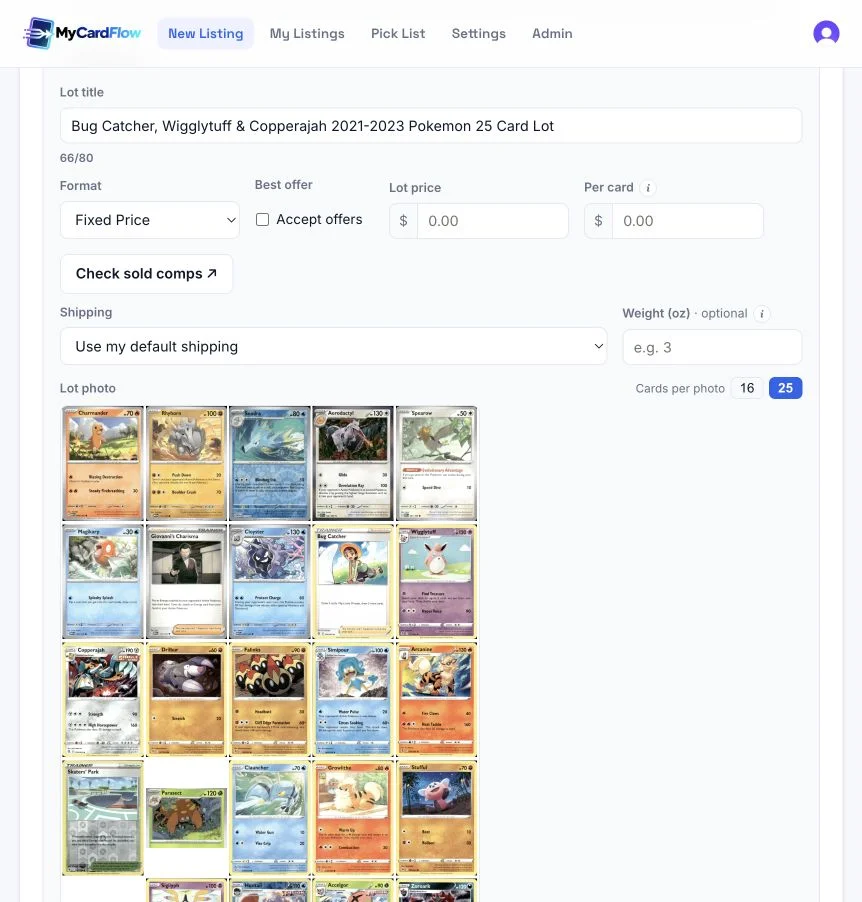
- Choose Bulk Lot, select your photo mode, and add and identify the cards.
- Review the included cards. Use Leave out of lot to exclude a card from the listing, or edit its details if needed.
- Review the lot title and generated photo grid. Choose the number of cards per photo.
- Set a Lot price or enter a Per card amount to calculate the total. Choose the format, shipping, lot location, and Store category for the whole listing, then use List lot on eBay.
Does each card get its own price?
The buyer purchases the whole lot at the lot price. Per card is a way to calculate that total; it does not create separate listings or let buyers select individual cards.
Can I run an auction or accept offers?
Lots support Fixed Price and Auction. Accept offers is available for fixed-price lots, including through the default in Settings → Listings. It does not apply to auctions.
What should I check before listing?
Check the included cards, title, grid images, total price, and shipping for the whole package. The sold-comps link starts with the first included card, so spot-check stronger cards yourself when pricing a mixed lot.
You-Pick listings
Create one eBay listing with individual card choices, each with its own price and available quantity.
- Choose You-Pick, select your photo mode, and add and identify your cards.
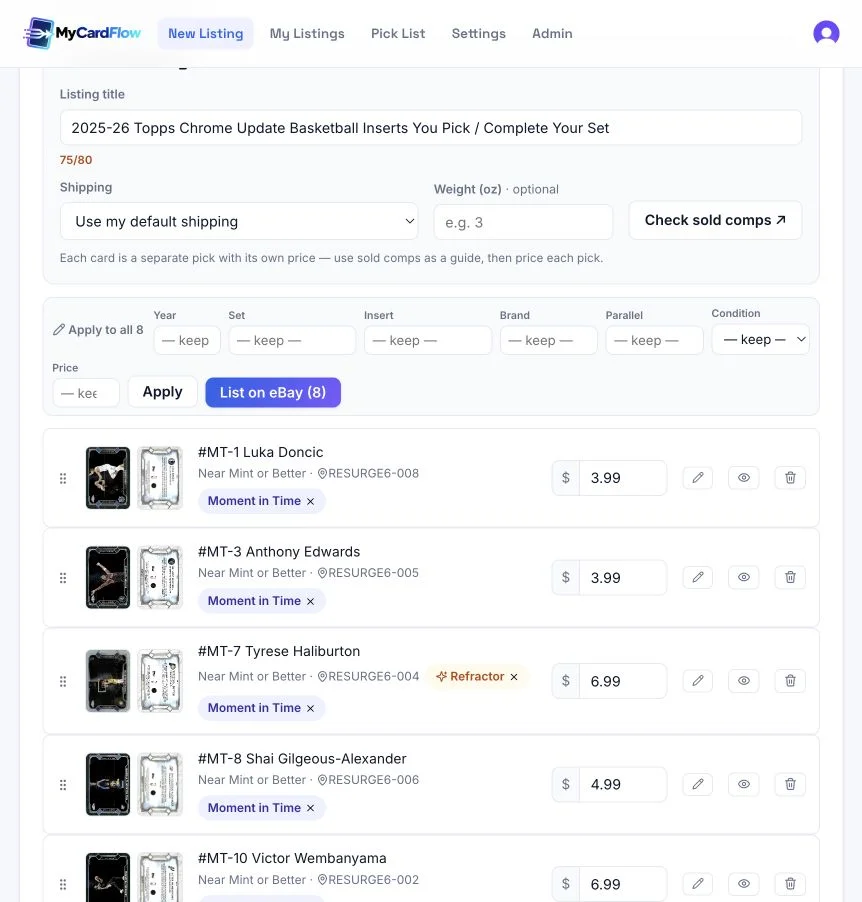
- Review each pick’s identity, parallel, price, and location. Matching duplicate copies are grouped as additional quantity.
- Check the shared listing title, shipping, and Store category for the whole listing. Every pick needs a price, and cards need storage locations so you can find sold copies.
- Publish the listing. Return through My Listings to manage it, add cards, or check what needs to ship.
Can I set one price across the picks?
Yes. Enter a price in Apply to all. If cards already have prices, choose whether to fill only blank prices or replace existing prices too.
How do duplicates work?
Copies with matching card identity and parallel can become one pick with extra quantity. Review the grouping and individual copy locations before publishing.
Can I accept offers on a You-Pick?
The Accept offers default does not apply to You-Pick listings. Set the price for each pick instead.
Managing listings & restocking
Use My Listings to find batches and published listings. Open a You-Pick’s management page for stock, pricing, and fulfillment.
- Open My Listings and use the listing-type and status filters to find your work.
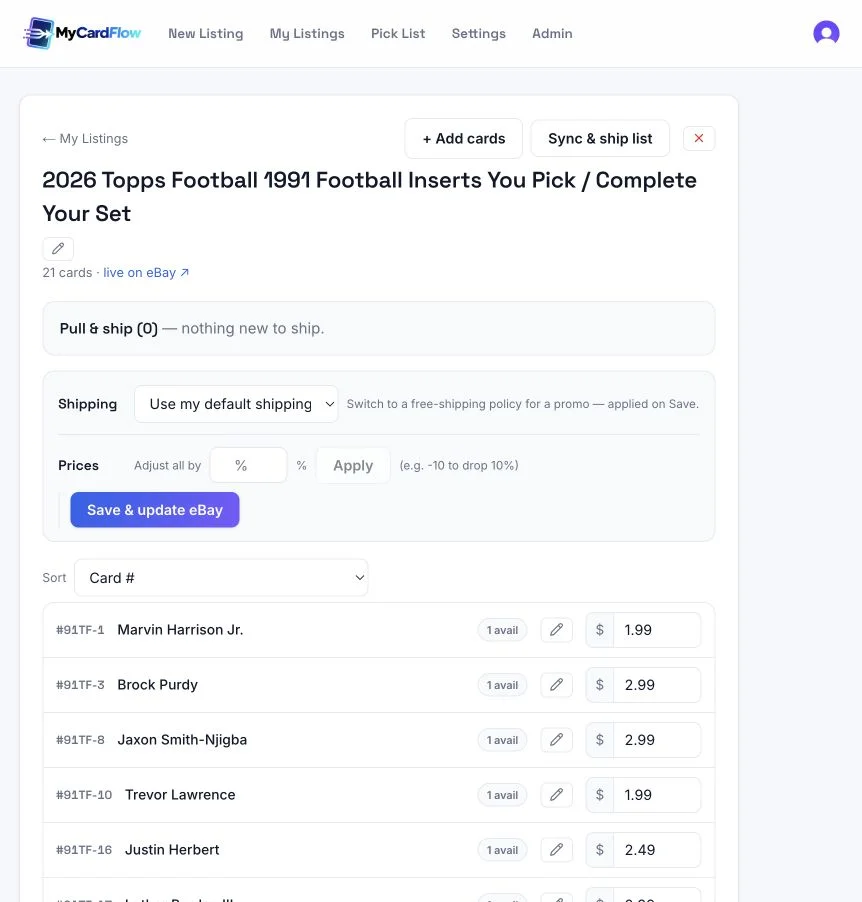
- For a You-Pick, open Manage. Use Add cards to add new choices or restock matching copies; review the additions before submitting them.
- Use Sync & ship list to refresh sold quantities and see cards to pull. The management page also attempts to sync when you open a live listing.
- To change You-Pick prices, edit them or apply a percentage adjustment, then use Save & update eBay.
Why doesn’t my stock look current?
Run Sync & ship list and check for an error. A failed or delayed sync can leave local counts out of date. Review the current eBay listing if the quantities still disagree.
What is a card location?
It is your storage reference, such as BOX3A. Numbered card locations help you find individual copies. A lot location identifies where the entire lot is stored.
Settings
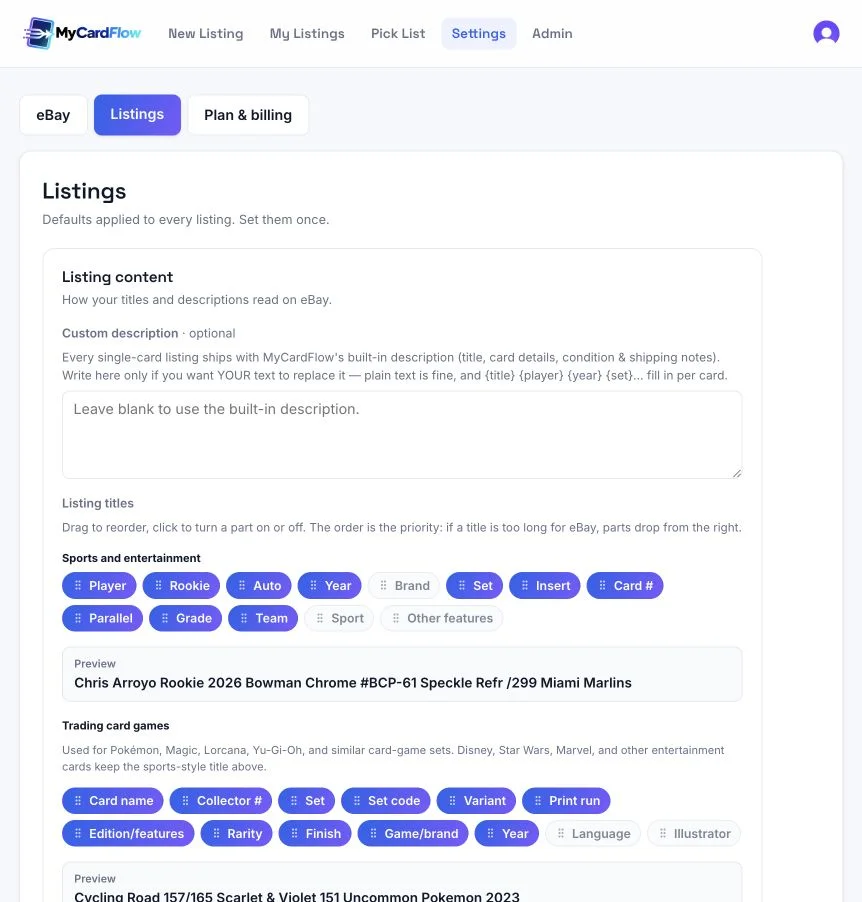
Settings has three tabs: eBay, Listings, and Plan & billing. Save changes to your listing defaults with Save settings.
What is in the eBay tab?
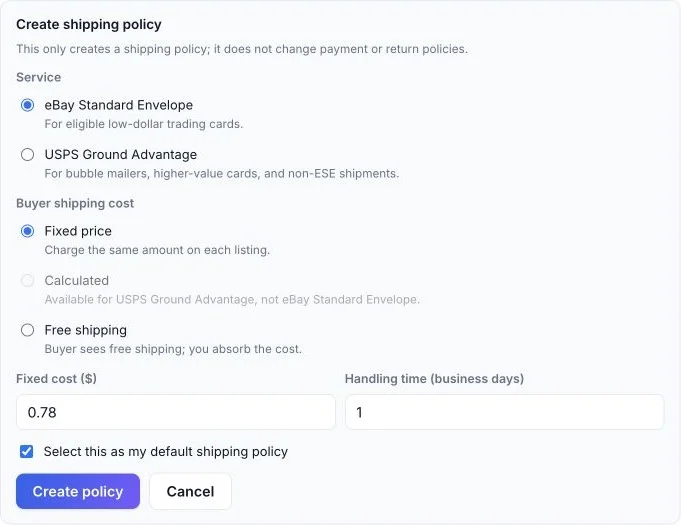
Connect or disconnect your seller account, check your ship-from address, and select payment, auction payment, shipping, and return policies. Refresh from eBay imports policy changes. Under Store categories, load your eBay store’s categories and map sports and games to them. Create shipping policy opens the form shown below.
What is in the Listings tab?
Customize single-card descriptions, choose and reorder title parts, set a default condition and card location, enable offers by default, and choose whether to add a front-and-back combination photo. Save your changes with Save settings.
How do custom descriptions and title builders work?
Leaving Custom description blank uses the built-in single-card description. Entering your own text replaces it; supported placeholders fill in card details. In the title builders, click a part to turn it on or off and drag to reorder it. Parts farther right have lower priority when a title is too long.
What is in Plan & billing?
View your plan and remaining scans, choose a subscription, or buy a one-time top-up. Manage billing opens the billing portal for payment details, invoices, and subscription management.
Store categories & batch defaults
Choose where listings appear in your connected eBay store. Category choices come directly from your store: use your sport/game mappings, choose one category for a singles batch, or override an individual listing.
- Open Settings → eBay → Store categories and select Load store categories. Map your sports and games to the categories you want, then select Save mappings. Open More sports & games for additional mappings.
- For a singles batch, open Batch defaults → Batch store category. Choose an existing store category, such as Auctions or $5 and Below, to use it across the batch. The choice saves with the batch for when you reopen it.
- Leave Use sport/game mappings selected if each card should follow its sport or game instead. Choose Don’t assign if the batch should have no store category by default.
- Review each card’s Store category. Use batch category follows the batch selection. Choose another store category for an exception, Sport/game mapping to bypass the batch, or Don’t assign to leave that listing unassigned.
- Check your selections before publishing. A batch category applies to unlisted cards that inherit it, including new cards added later. Changing it preserves individual overrides and does not move listings already live on eBay.
How could I use a $5 and Below or Auctions category?
If you already have that category in your eBay store, select it under Batch store category. For example, put a singles batch in $5 and Below, then choose Graded Cards on one listing that belongs elsewhere. The other cards keep following the batch. These names only organize your store: choosing Auctions does not change the listing format, and choosing $5 and Below does not set or limit prices.
Which category wins: the listing, the batch, or the sport/game mapping?
An individual listing’s choice takes priority. Cards set to Use batch category follow the current batch selection. If the batch uses Use sport/game mappings, those cards use their sport/game mapping from Settings. Select Use batch category on a card to remove its individual override and follow the batch again.
Where do I create a category, and what if it is missing?
Create categories in your eBay store, then use Refresh beside the store-category picker in MyCardFlow. You can select categories with no subcategories; nested categories show their full path. If a category was deleted or you connected a different eBay account, refresh and choose a category from the currently connected store.
Does this work for bulk lots and You-Pick?
Yes. Their Store category picker chooses one category for the entire listing. Use the sport/game mapping or select a category from your store, such as Lots or You-Pick, if you have one. A mixed or unrecognized group may have no automatic assignment, so choose a category yourself when needed. The Batch store category control described above is for singles.
Will category changes move my existing eBay listings?
No. Changing mappings or a batch category does not revise listings already live on eBay. Store categories organize your own eBay storefront; they do not change the eBay marketplace category used for a listing.
Add a shipping policy
Create a shipping policy from MyCardFlow and optionally select it as your default. Connect eBay first.
- Open Settings → eBay. Under Shipping & policies, select Create shipping policy.
- Choose eBay Standard Envelope for eligible cards, or USPS Ground Advantage for packages such as bubble mailers.
- Choose the buyer’s shipping cost: Fixed price, Free shipping, or Calculated for Ground Advantage. Enter a fixed cost when applicable and set your handling time in business days.
- Leave Select this as my default shipping policy checked if you want to use it by default, then select Create policy. This creates the policy in your connected eBay account.
- Check the selected Shipping policy. If you manually change the dropdown afterward, use Save settings. You can choose a different shipping policy while reviewing a listing.
Can I use calculated shipping with Standard Envelope?
This form offers calculated shipping for USPS Ground Advantage, not eBay Standard Envelope. For calculated shipping, supply the required package details when preparing the listing.
Will this change my payment or return policies?
No. Create shipping policy creates a shipping policy only. Your payment and return policies have separate selections.
What if I already made a policy on eBay?
Select Refresh from eBay, choose it in the Shipping policy dropdown, and save your settings.
Allow offers by default
Enable offers at the account level in MyCardFlow so new fixed-price singles and lots start with offers allowed.
- Open Settings → Listings and find Offers.
- Check Accept offers by default.
- Select Save settings.
- Review Accept offers when preparing a new fixed-price single or lot. You can turn it off for an individual listing.

Does this update existing eBay listings?
No. It is a default for new fixed-price singles and lots in MyCardFlow, not a bulk update to existing listings on eBay.
Does this automatically accept an offer?
No. It allows buyers to make offers; it does not automatically accept them. The default does not apply to auctions or You-Pick listings.
Card scans & billing
See your remaining scans and manage your plan in Settings → Plan & billing.
What uses a card scan?
A successful card identification uses a scan, including a match to an already-known card. Editing details and publishing listings do not use identification scans.
Do failed identifications cost a scan?
Failed identifications are not charged. A successfully returned identification still needs your review; correcting its details is free.
What happens when I run out?
You need more scans to identify additional cards. Choose a plan or buy a one-time top-up in Plan & billing. Your previously identified cards remain available.
How do I manage or cancel my subscription?
Open Settings → Plan & billing and use Manage billing. Check the renewal or end date displayed for your plan.
Troubleshooting
Review the on-screen message first. If you need help, email admin@mycardflow.com with the steps you took and the error you saw.
The card or parallel was identified incorrectly. What should I do?
Edit the card details before publishing. Double-check the card number, set, insert, parallel, and condition against the actual card. Clear an incorrect parallel or insert badge where shown. For a new photo, reduce glare and include the card’s identifying details.
Why can’t I publish?
Check for missing prices or required fields, confirm your eBay connection and policies in Settings, and read the listing error. You-Pick cards also need storage locations. Correct the reported issue before trying again.
My shipping policy is missing.
Open Settings → eBay and use Refresh from eBay. If you need a new policy, use Create shipping policy. Confirm your selection and save settings before returning to your listing.
Your data & account
For details about data handling, use the Privacy link in the footer. Contact admin@mycardflow.com for account help.
What happens to my card photos?
MyCardFlow stores uploaded images to provide identification and listing features. Photos may be processed by our AI provider to identify cards and used in the eBay listings you publish. We do not sell or rent your card images.
How do I disconnect eBay?
Open Settings → eBay and select Disconnect. This removes the stored eBay access and refresh tokens. You will need to reconnect before publishing through MyCardFlow again.
How do I request account and data deletion?
Email admin@mycardflow.com to request deletion. Deleting your MyCardFlow organization permanently removes its card images, listings, inventory, and account records. This cannot be undone.